Welcome guide
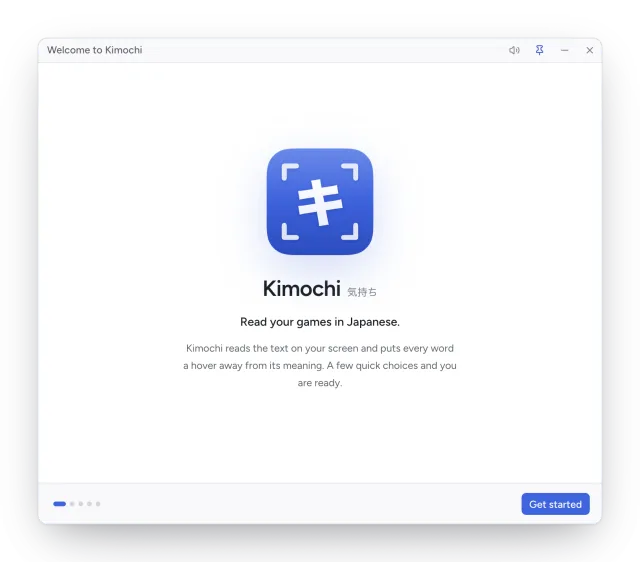
The first time Kimochi opens, a short welcome guide sets up what it needs. Every step can be changed later in Settings, and you can open the guide again from Settings → General → Help → Welcome guide.
The steps
Section titled “The steps”| Step | What it does | Shown on |
|---|---|---|
| Allow screen recording | Lets Kimochi capture the window you read. | macOS |
| Choose what to read | Opens your desktop’s own dialog to pick a screen or window. | Linux (Wayland) |
| Allow Accessibility | Optional: lets a click on your source bring that exact window forward. | macOS |
| How should Kimochi read text? | Picks the OCR engine. | All |
| Choose a pop-up dictionary | Picks and downloads a dictionary engine. | All |
| Add a dictionary / Set up … | Sets up that engine (Jitendex for Yomitan). | All |
| Add Kimochi to your Steam library | Adds Kimochi to Steam for Gaming Mode. | Steam Deck, Desktop Mode |
| You’re ready to read | Recaps the loop and offers a test lookup. | All |
In Steam Deck Gaming Mode the capture and Accessibility steps are skipped: Gaming Mode shares the game screen on its own.
OCR engine
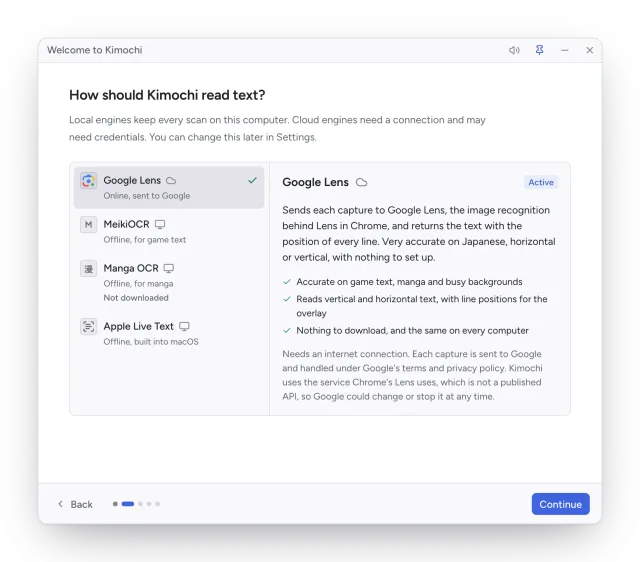
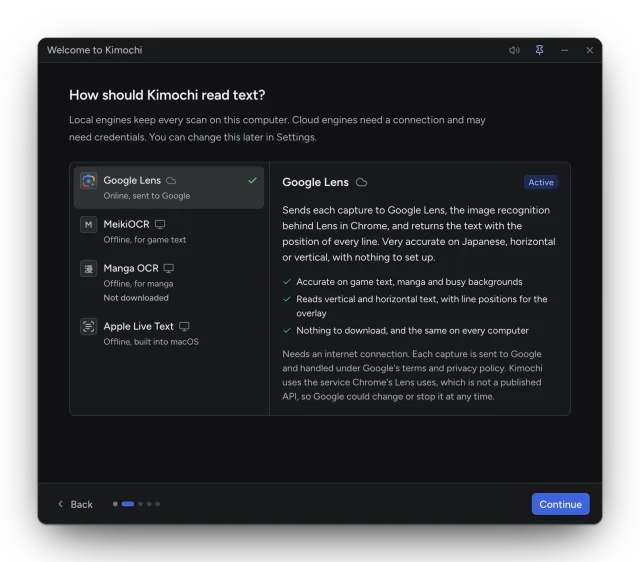
Section titled “OCR engine”Local engines keep every scan on this computer. Cloud engines need a connection and may need credentials. Google Lens is selected to begin with; see OCR engines for the differences.
Dictionary engine
Section titled “Dictionary engine”Kimochi looks words up with a pop-up dictionary engine. Choose one and Kimochi downloads it from its official release (Built-in Yomitan is recommended). You can switch at any time in Settings → Dictionary.
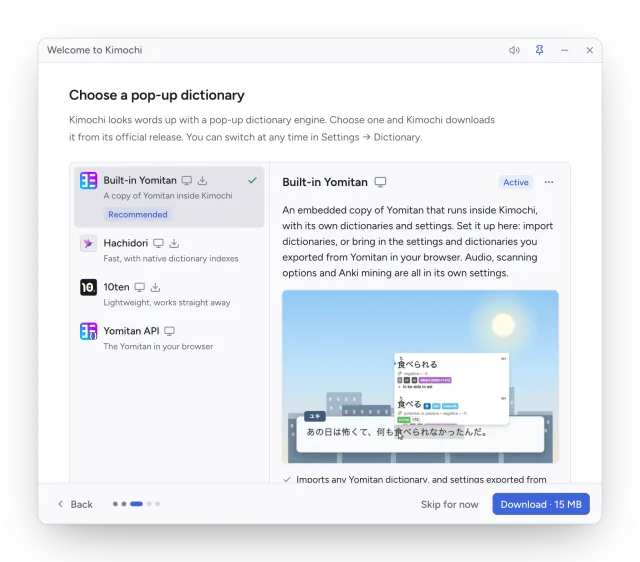
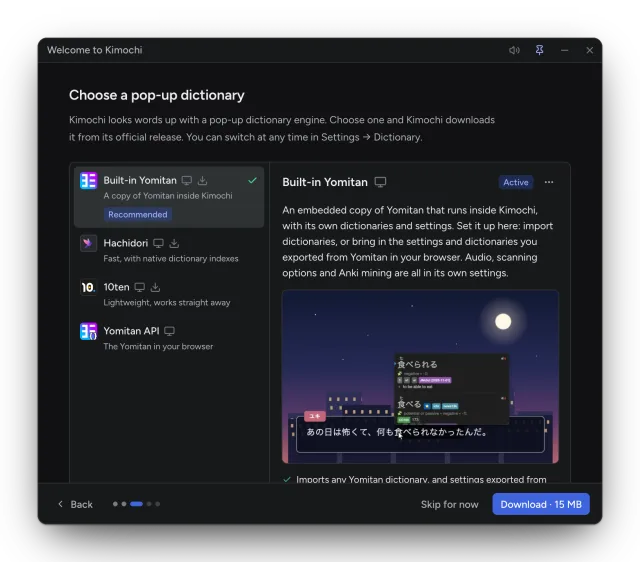
If you skip it, nothing will look words up until you choose and download a dictionary in Settings → Dictionary. Scanning and the Log still work.
Add a dictionary (Built-in Yomitan)
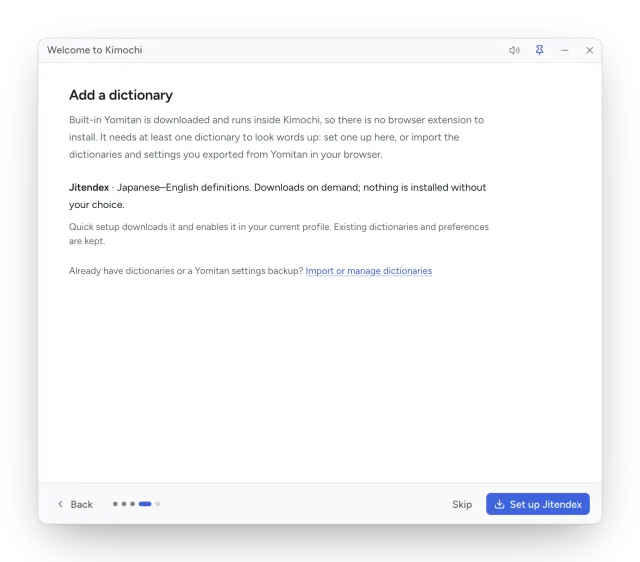
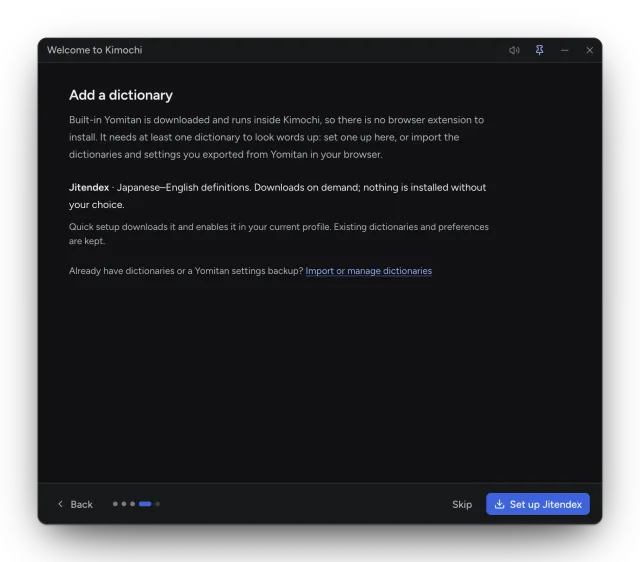
Section titled “Add a dictionary (Built-in Yomitan)”Built-in Yomitan needs at least one dictionary. Set up Jitendex downloads the Jitendex Japanese–English dictionary and enables it in your current Yomitan profile; existing dictionaries and preferences are kept. It carries on in the background if you press Continue while importing. Already have dictionaries or a Yomitan settings backup from your browser? Choose Import or manage dictionaries.
Hachidori offers a set of recommended dictionaries the first time its settings open. 10ten works straight away and downloads its full dictionaries in the background.
You’re ready to read
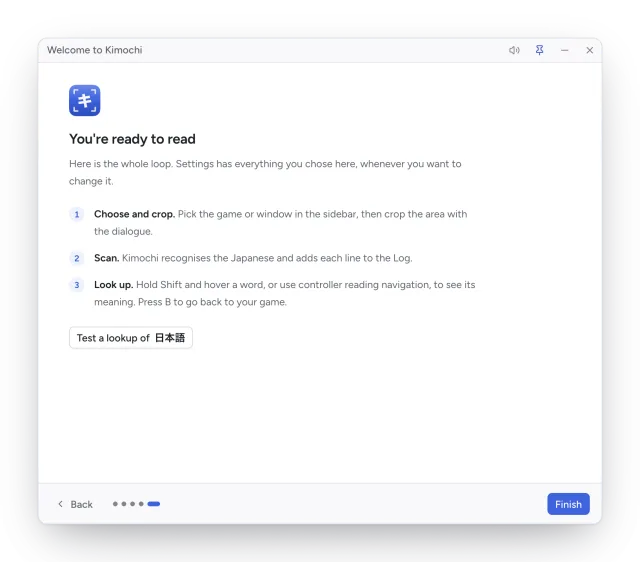
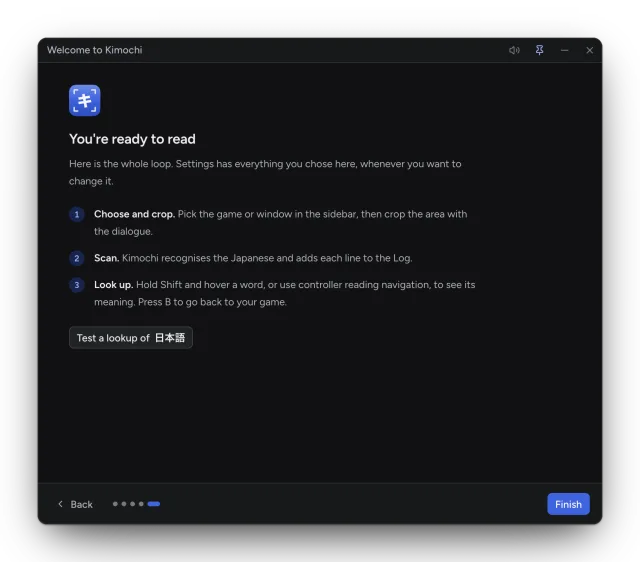
Section titled “You’re ready to read”The last step recaps the loop: choose and crop, scan, look up (hold Shift and hover a word, or use controller reading navigation; press B to go back to your game). With Built-in Yomitan, Test a lookup of 日本語 checks that your dictionary answers.