Sources and crop
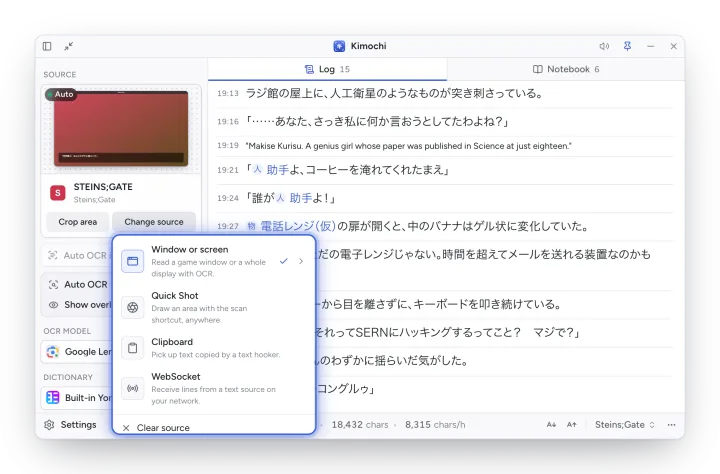
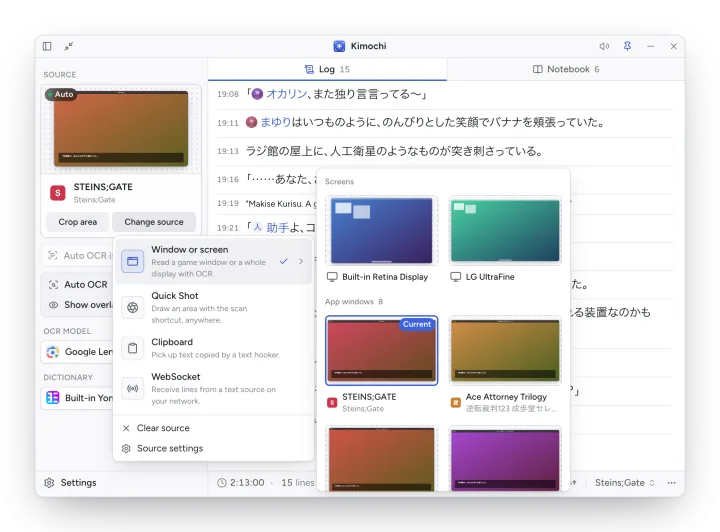
The source is where the Log’s lines come from. It sits at the top of the main window’s sidebar: a live preview of the window or screen, its name, and Crop area and Change source.
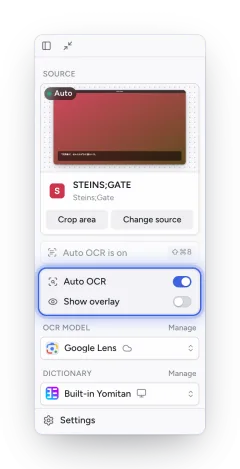
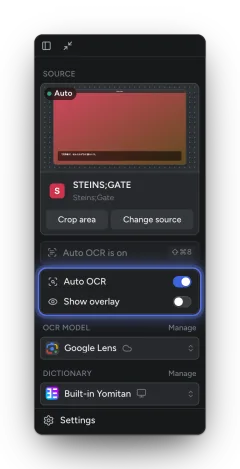
Clicking the card brings the source forward (Bring to front, or Go to full screen for a full-screen game). Hover it and the ✕ in the corner clears the source.
Kinds of source
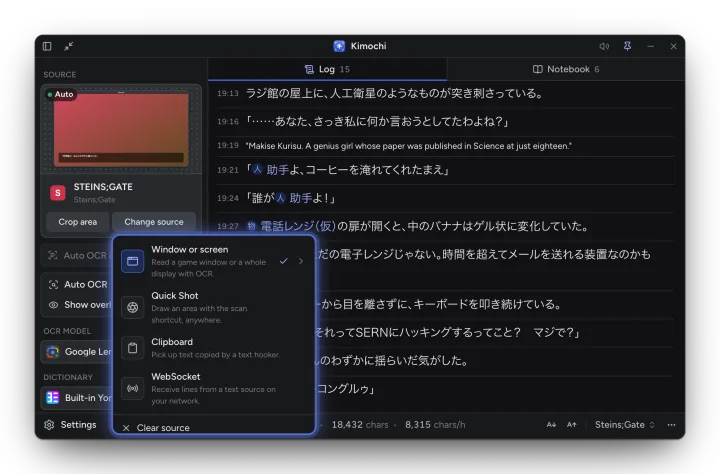
Section titled “Kinds of source”Open Change source (or Choose a source when none is set) to switch:
| Source | What it reads |
|---|---|
| Window or screen | A game window or a whole display, with OCR. |
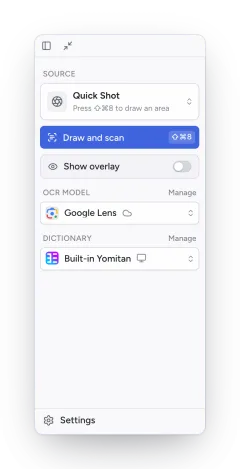
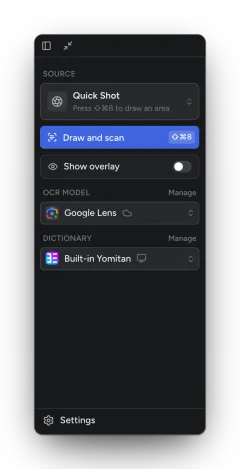
| Quick Shot | No source to choose: the Scan shortcut asks you to draw an area anywhere, then reads it. |
| Clipboard | Text copied to the clipboard, for example by a text hooker. |
| WebSocket | Lines from a text source on your network. |
Clear source forgets the current one, and Source settings opens Settings → Sources.
Choosing a window or screen
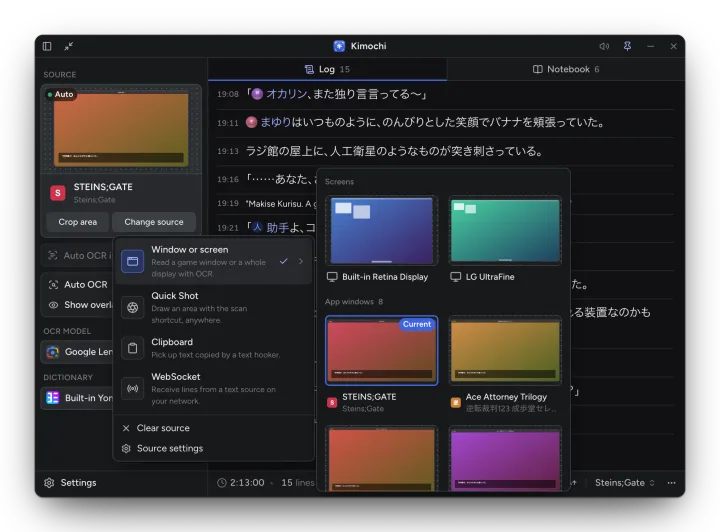
Section titled “Choosing a window or screen”Window or screen opens a grid of Screens and App windows, each with a live thumbnail. The current one is badged Current. Pick the game’s window to read just that window wherever it is, or a screen to read everything on it.
- macOS lists windows once Screen Recording is allowed; until then the grid shows Allow Screen Recording…. See Install on macOS.
- Linux on Wayland uses your desktop’s own dialog instead: Choose New Source… opens it, Use Current Source keeps the last pick. See Install on Linux.
- Steam Deck Gaming Mode lists your running games by name, with their Steam icons and live previews. See Gaming Mode.
With Switch sessions by window name on (the default), each window you read gets its own session, created the first time.
Crop area
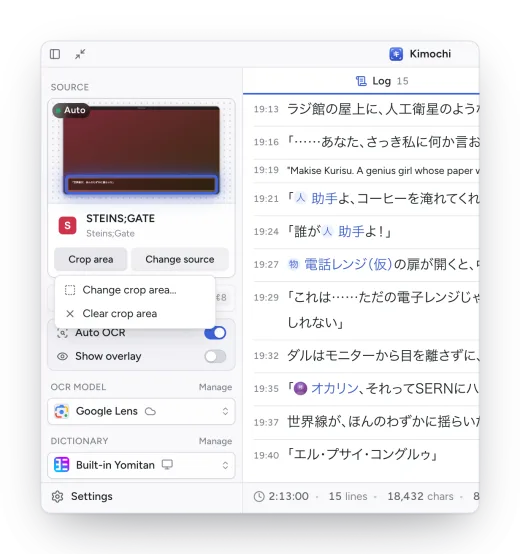
Section titled “Crop area”A crop area limits scans to part of the source, such as the dialogue box, so menus, HUDs and other text stay out of the Log. Crop area → Set crop area… opens the region editor over the source:
- Drag to draw the box. Hold Space while drawing to move it.
- Drag inside the box to move it, or its edges and corners to resize it.
- Arrow keys nudge it by one point (Shift + arrows by ten).
- Press Return, double-click inside, or choose Confirm to keep it; Esc cancels.
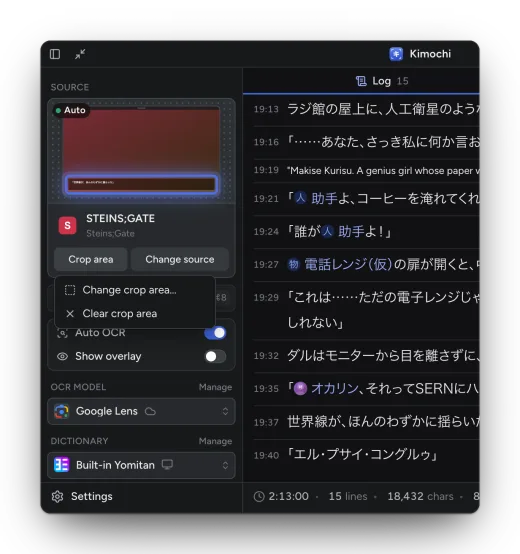
The crop shows as a frame on the live preview. Change crop area… edits it and Clear crop area removes it.
Quick Shot
Section titled “Quick Shot”With Quick Shot there is no window to choose. Press the Scan shortcut (or Draw and scan) and draw an area anywhere on the screen; Kimochi reads it once. Auto OCR isn’t available in Quick Shot.