
Install on Linux
Kimochi has Linux builds for x64 and ARM64, as an AppImage (any distribution) and a .deb (Ubuntu, Debian, Mint, Pop!_OS). The marketing site’s Linux install guide walks through the same steps.
Open a terminal, paste this line and press Enter:
curl -fsSL https://kimochiapp.com/install.sh | shIt installs the newest Kimochi AppImage for your CPU in your home folder, adds Kimochi to your app menu (under Education) and opens it. No administrator password is needed, and nothing outside your home folder is touched. Run it again at any time to update in place; your settings, dictionaries and history are kept.
Options, after sh -s --:
| Option | What it does |
|---|---|
--no-launch |
Install or update without opening Kimochi afterwards. |
--nightly |
Install the development build. |
--appimage <file> |
Install an AppImage you already downloaded. |
--uninstall |
Remove Kimochi and its menu entries (your data is kept). |
--help |
List the options. |
For example: curl -fsSL https://kimochiapp.com/install.sh | sh -s -- --no-launch.
Download the .deb for your computer from kimochiapp.com,
then install it from the folder you saved it to:
cd ~/Downloads && sudo apt install ./kimochi_*.debThe .deb gets updates inside Kimochi too; each one asks for your password before it installs.
Download the .AppImage for your computer, make it executable and run it:
cd ~/Downloads && chmod +x ./kimochi_*.AppImage && ./kimochi_*.AppImageNothing happens? See If Kimochi won’t start.
Choosing what to read
Section titled “Choosing what to read”How Kimochi sees your screen depends on your desktop.
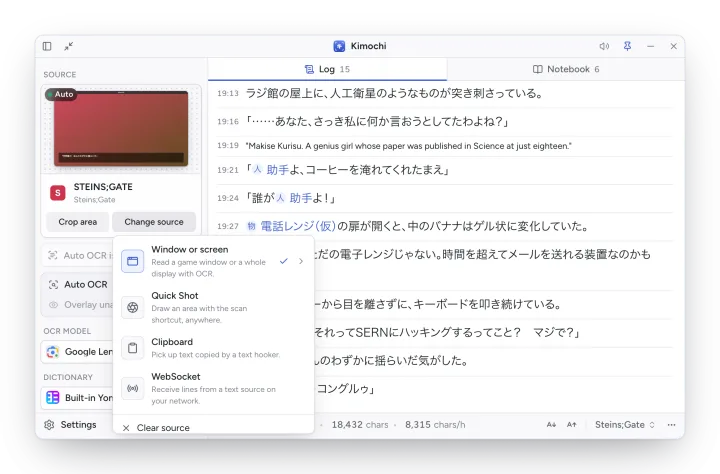
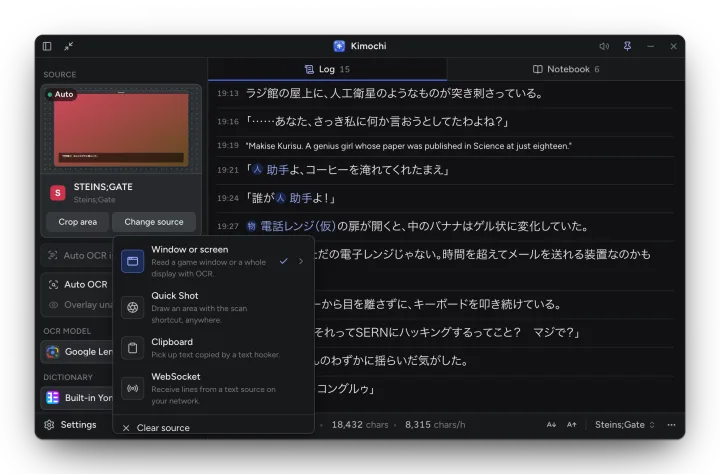
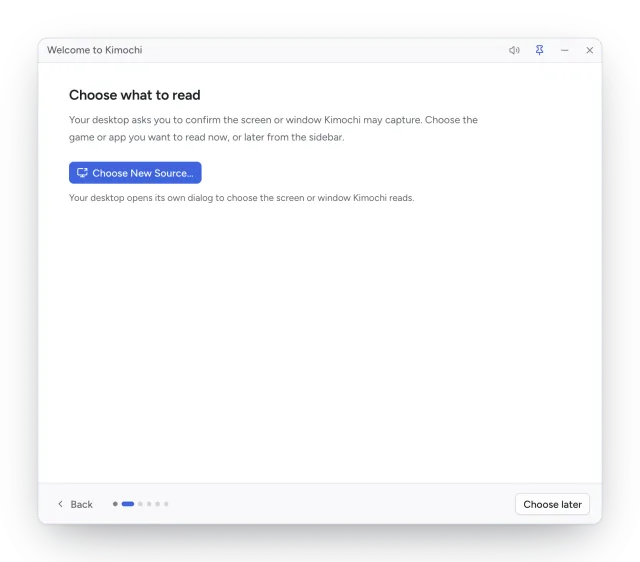
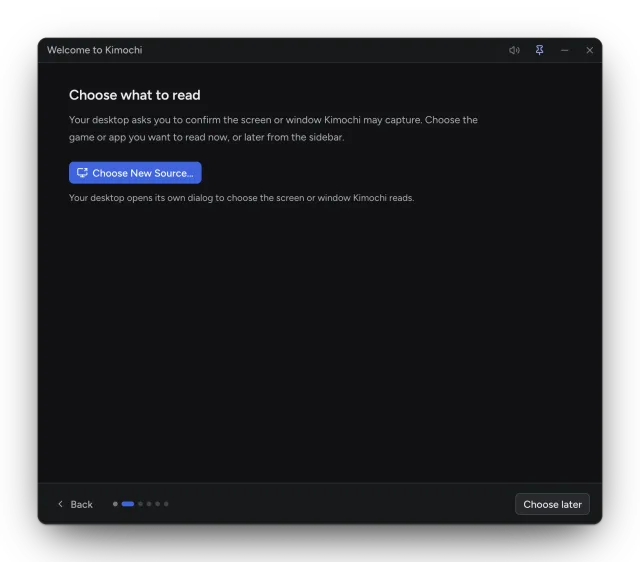
- Wayland (most current desktops): your desktop shows its own dialog to choose the screen or window Kimochi may capture. The welcome guide’s Choose what to read step opens it, and later Change source → Choose New Source… does. Use Current Source keeps the one you picked; Kimochi remembers it across restarts.
- X11: Kimochi lists your windows itself, as on macOS and Windows. Minimised windows and windows on other workspaces aren’t listed.
The overlay on Wayland
Section titled “The overlay on Wayland”Drawing over other apps on Wayland needs the desktop’s layer-shell support. On desktops without it, Show overlay reads Overlay unavailable; scanning, the Log and lookups still work. On GNOME 46, Settings → General → Desktop integration → GNOME overlay sets up a small GNOME extension that enables screen annotations, dictionary pop-ups and desktop region selection (one monitor). Without either, Crop area → Set crop area… opens a crop editor inside Kimochi’s window.
Global shortcuts on Hyprland
Section titled “Global shortcuts on Hyprland”On Hyprland, bind Kimochi’s shortcuts in the compositor’s own config.
Updating
Section titled “Updating”Kimochi updates itself when a new version comes out. If you used the one-line installer, that happens quietly; running the installer again also brings you up to date. If you installed the .deb, Kimochi asks for your password before each update.
Uninstalling
Section titled “Uninstalling”-
One-line installer (including on a Steam Deck):
Terminal window curl -fsSL https://kimochiapp.com/install.sh | sh -s -- --uninstallYour settings and dictionaries are kept in case you come back. To delete them too:
Terminal window rm -rf ~/.local/share/dev.kimochi.app ~/.config/dev.kimochi.app ~/.cache/dev.kimochi.app -
.deb:
sudo apt remove kimochi
If Kimochi won’t start
Section titled “If Kimochi won’t start”The AppImage needs FUSE 3, which desktop installs usually come with (the Steam Deck does). The one-line installer checks for it and, if it’s missing, sets Kimochi up to run without it; it just starts a little slower. If you downloaded the AppImage yourself and it doesn’t open, install FUSE 3 and try again:
| Distribution | Command |
|---|---|
| Ubuntu, Debian, Mint | sudo apt install fuse3 |
| Fedora | sudo dnf install fuse3 |
| Arch | sudo pacman -S fuse3 |
| openSUSE | sudo zypper install fuse3 |
More in Troubleshooting.