
Steam Deck
Install Kimochi once from Desktop Mode. After that it lives in your Steam library, and you can open it in Gaming Mode right alongside your game. Steam Deck support is early, and Gaming Mode is experimental.
-
Switch to Desktop Mode. Press the Steam button, choose Power, then Switch to Desktop.
-
Open Konsole. Open the app launcher in the bottom-left corner, then go to System and choose Konsole. It’s the terminal, where you’ll paste one line.
-
Paste the installer and press Enter.
Terminal window curl -fsSL https://kimochiapp.com/install.sh | shIt’s easiest if you open this page on the Deck itself. To paste in Konsole, press Ctrl+Shift+V, or right-click (the left trigger) and choose Paste. Steam + X brings up the on-screen keyboard. The installer never touches SteamOS’s read-only system partition.
-
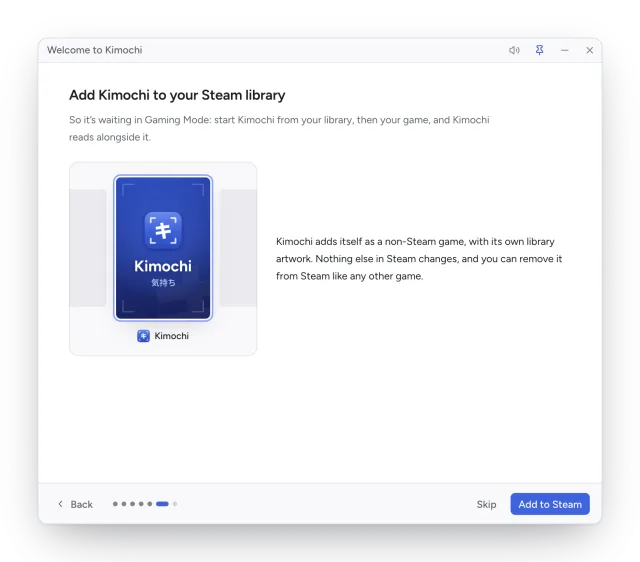
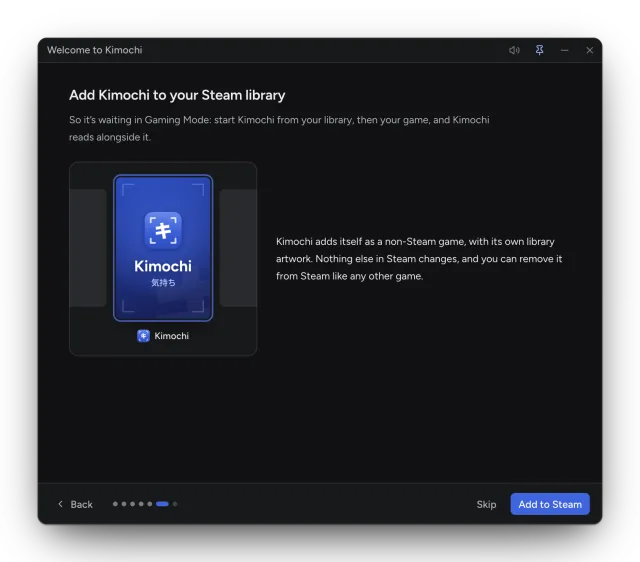
Add Kimochi to your Steam library. Kimochi opens when it’s installed. Its welcome guide offers to add it to your Steam library, so it shows up in Gaming Mode with its own artwork. Say yes.
-
Read in Desktop Mode or in Gaming Mode. You can keep using Kimochi in Desktop Mode. Or double-click Return to Gaming Mode on the desktop and launch Kimochi from your library. It runs alongside your game: click both sticks to open its radial menu.
Adding to Steam later
Section titled “Adding to Steam later”Kimochi adds itself as a non-Steam game, with its own library artwork. Nothing else in Steam changes, and you can remove it from Steam like any other game. If you skipped the step, use Settings → General → Steam library → Add to Steam. Its artwork appears once Steam restarts, as it does when you switch to Gaming Mode.
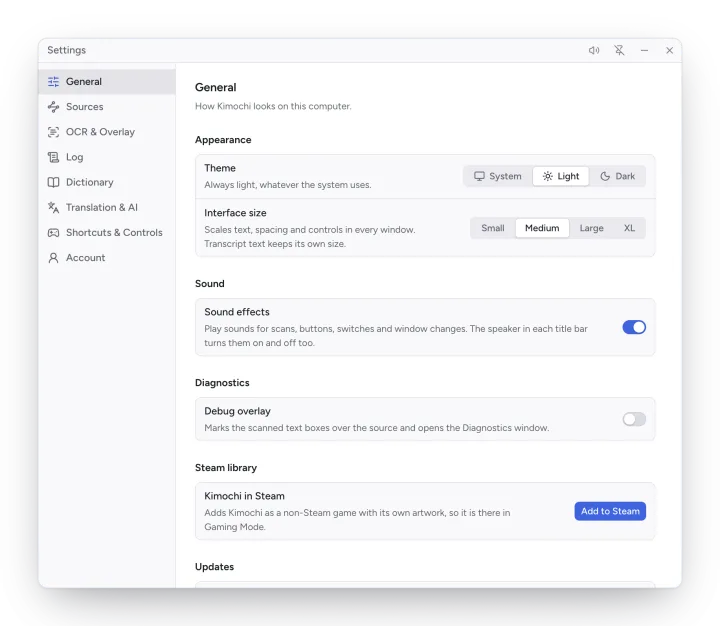
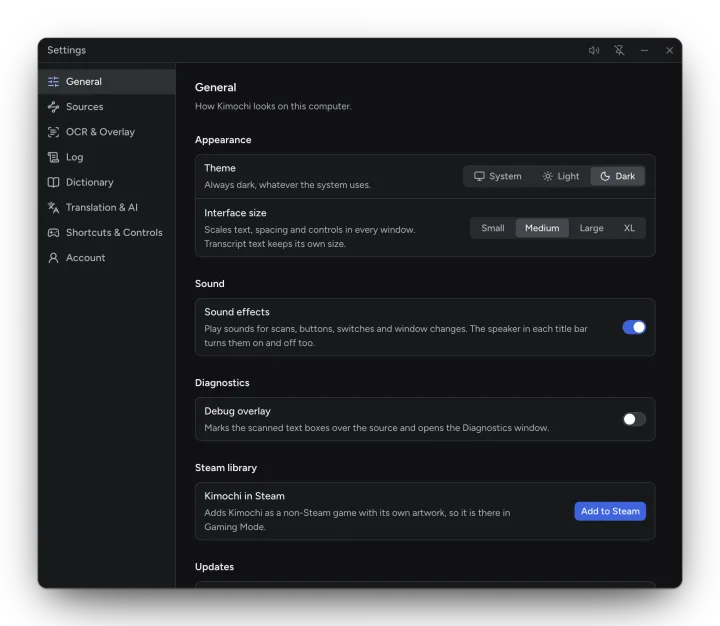
If Steam isn’t running, open Steam from the desktop and try again. Or add it yourself: in Steam, choose Add a Game → Add a Non-Steam Game, tick Kimochi, then Add Selected Programs.
- Gaming Mode: reading with the controller while the game runs.
- Controller buttons: every button, in one table.