
Troubleshooting
Capture
Section titled “Capture”My windows don’t appear (macOS)
Section titled “My windows don’t appear (macOS)”Kimochi needs Screen Recording. Until it is allowed, the source picker shows Allow Screen Recording… and the grid says No windows to read. Enable Screen Recording for Kimochi in System Settings. Turn Kimochi on in System Settings → Privacy & Security → Screen & System Audio Recording, and reopen Kimochi if macOS asks.
Screen Recording is on, but capture is still refused (macOS)
Section titled “Screen Recording is on, but capture is still refused (macOS)”macOS ties the permission to how the app was signed. If you switched between builds (for example a nightly and a release), System Settings can show Kimochi as allowed while capture is refused. Reset the old grant in Terminal, then allow Kimochi again:
tccutil reset ScreenCapture dev.kimochi.appI can’t pick a window on Linux
Section titled “I can’t pick a window on Linux”On Wayland your desktop chooses what Kimochi may capture: use Change source → Choose New Source… and pick the window in your desktop’s dialog. If the dialog closes or times out, nothing was shared; try again. On X11, minimised windows and windows on other workspaces aren’t listed.
Scanning
Section titled “Scanning”A scan adds nothing
Section titled “A scan adds nothing”Watch the Log’s activity ticker:
| Message | What to do |
|---|---|
| Choose a source before scanning | Pick a window or screen in the sidebar. |
| Nothing recognised | Crop to the text box, or try another OCR engine. |
| Same text as before, not added | The text hasn’t changed since the last scan. |
| Capture failed: … / The source is gone: … | The window closed or moved; choose it again. |
| OCR failed: … | The engine had a problem. For online engines, check your connection. |
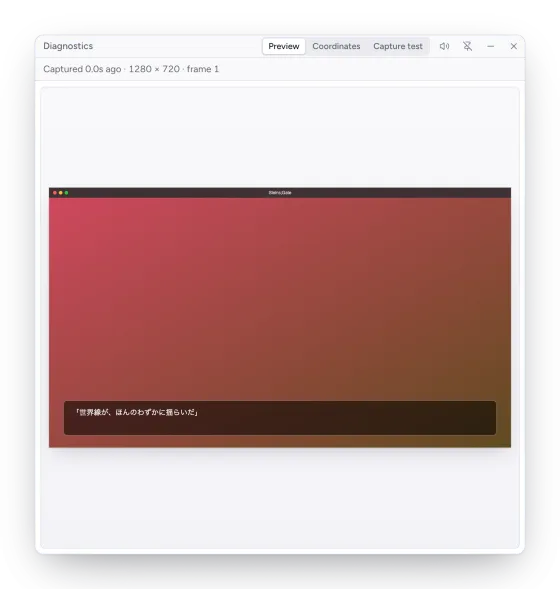
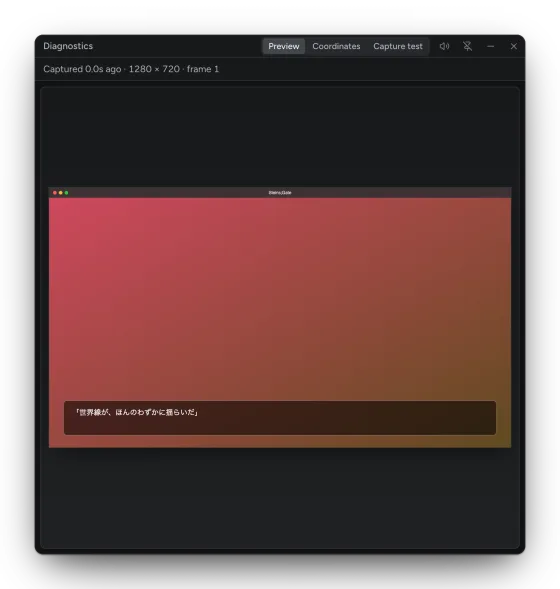
To see exactly what the OCR found, turn on Settings → General → Diagnostics → Debug overlay: it marks the scanned text boxes over the source and opens the Diagnostics window, which shows the last capture (Preview), the box positions (Coordinates) and a Capture test.
Auto OCR stopped
Section titled “Auto OCR stopped”After several failed scans in a row Auto OCR pauses (Auto-scan paused: it failed several times in a row). Fix the cause (often the source or the connection), then turn Auto OCR off and on again. Manual scans still work meanwhile.
Furigana or small text gets in the way
Section titled “Furigana or small text gets in the way”Keep Filter out furigana and small text on (Settings → OCR & Overlay) and lower or raise the Size threshold. A crop area around the dialogue also helps.
Google Lens stopped working
Section titled “Google Lens stopped working”Kimochi uses the service Chrome’s Lens uses, which is not a published API, so Google could change or stop it at any time. Switch to another engine, such as MeikiOCR, in the meantime.
The overlay
Section titled “The overlay”- The overlay is slow or choppy on macOS: Game Mode is throttling it. See Game Mode.
- Show overlay reads “Overlay unavailable” (Linux, Wayland): your desktop doesn’t support the overlay yet. See The overlay on Wayland.
- Nothing happens when I hover: hold the dictionary’s scan key (Shift for Yomitan) and check that a dictionary is set up (next section).
Dictionaries
Section titled “Dictionaries”- No definitions found: Built-in Yomitan needs a dictionary that is installed and enabled in its current profile. Open Settings → Dictionary → Open Built-in Yomitan settings and enable one, or run the welcome guide’s Set up Jitendex again.
- “An incomplete Jitendex import already exists”: remove the half-imported Jitendex in the dictionary settings, then retry.
- The engine won’t download: check your connection and press Retry, or choose another engine. Downloads resume where they stopped.
- My dictionaries disappeared (macOS, building from source): run the app bundle, not the bare executable, which gets different web storage.
Could not reach AnkiConnect: make sure Anki is running with the
AnkiConnect add-on installed, and that the AnkiConnect
URL matches (default http://127.0.0.1:8765).
- The AppImage won’t start: install FUSE 3 (
sudo apt install fuse3,sudo dnf install fuse3,sudo pacman -S fuse3,sudo zypper install fuse3), or use the one-line installer, which sets Kimochi up to run without it. See Install on Linux. - “GitHub’s download limit was reached” from the installer: wait a few minutes, or download the
AppImage yourself and run the installer with
--appimage <file>. - Dictionary audio is silent: Kimochi plays audio through GStreamer and needs its base, good and bad plugins (the .deb installs them; with the AppImage, install them from your distribution).
Steam Deck
Section titled “Steam Deck”- Add to Steam fails with “Steam is not running”: open Steam from the desktop, then try again, or add Kimochi yourself as a non-Steam game.
- Kimochi’s artwork is missing in Gaming Mode: it appears once Steam restarts, as it does when you switch to Gaming Mode.
Signing in
Section titled “Signing in”- The code expired: codes work for 10 minutes, once. Choose Sign in again in Settings → Account for a new one.
- “Sign in to … again”: this computer’s sign-in was revoked or expired. Your data is still here; sign in again and Sync resumes.
Still stuck?
Section titled “Still stuck?”Open an issue on GitHub with your OS, the Kimochi version (Settings → General → Updates), the OCR engine and dictionary engine you use, and what you expected to happen. Or email hamstu@gmail.com.