
Anki
Kimochi adds cards to Anki through the
AnkiConnect add-on. Anki has to be running with
AnkiConnect installed; Kimochi talks to it on this computer (http://127.0.0.1:8765 by default).
How you set it up depends on your dictionary engine:
| Engine | Where cards are set up |
|---|---|
| Built-in Yomitan | Yomitan’s own Anki settings: Settings → Dictionary → Open Built-in Yomitan settings → Anki. Its pop-up has the add buttons. |
| Hachidori | Hachidori’s settings (through AnkiConnect). |
| 10ten | No Anki mining. |
| Yomitan API | Kimochi’s own card builder, below. |
Yomitan API
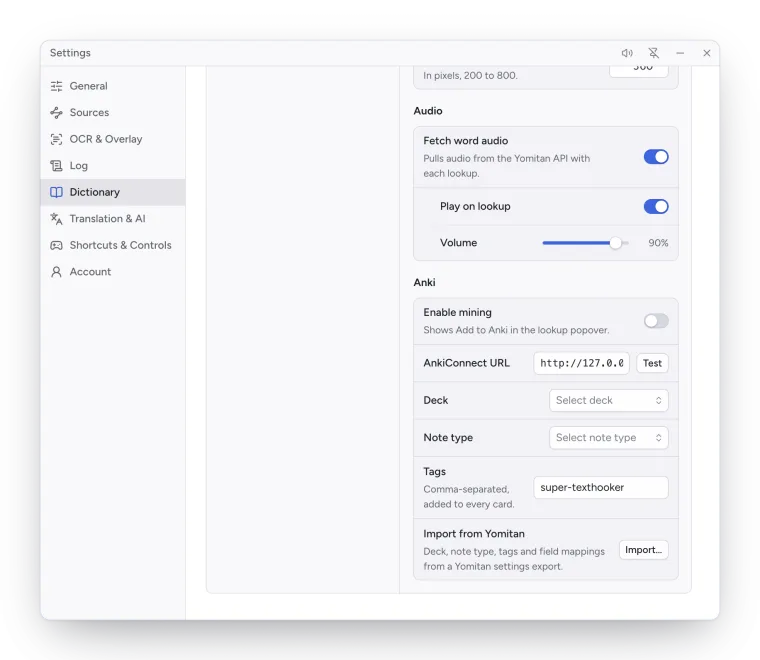
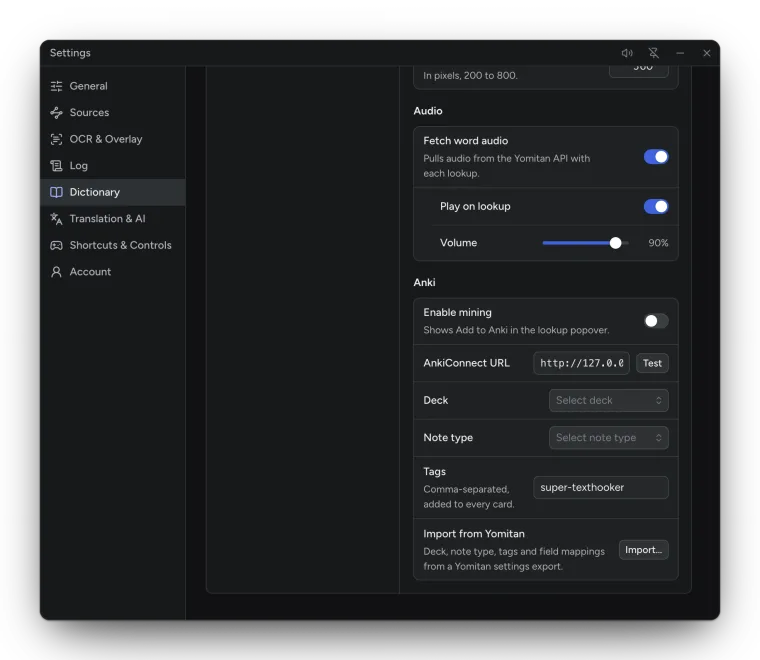
Section titled “Yomitan API”With the Yomitan API engine, Kimochi builds the cards itself. In Settings → Dictionary → Anki:
| Setting | Default | What it does |
|---|---|---|
| Enable mining | Off | Shows Add to Anki in the lookup pop-up. |
| AnkiConnect URL | http://127.0.0.1:8765 |
Test checks that Anki answers. |
| Deck / Note type | — | Where cards go, and which note type they use. |
| Tags | super-texthooker |
Comma-separated, added to every card. |
| Import from Yomitan | — | Reads the deck, note type, tags and field mappings from a Yomitan settings export. |
| Field mapping | — | For each field of the note type: a Yomitan marker, (sentence), or literal text. |
The markers are expression, reading, glossary, dictionary, frequencies, pitch-accents,
part-of-speech, tags, conjugation, audio, sentence and sentence-furigana.
In the pop-up, Add to Anki turns into Added (click to open the card in Anki), or In Anki when the word is already in your deck. If Anki isn’t running you’ll see Anki not running.
Settings → Log → Reset Log settings resets the Anki setup along with the other Log, Sources, Dictionary and AI options.