
Install on macOS
Kimochi needs macOS 14 or later on a Mac with Apple silicon.
-
Download the macOS build (
Kimochi_<version>_aarch64.app.zip) from kimochiapp.com. -
Open the zip and move Kimochi to your Applications folder, then open it.
-
Follow the welcome guide. Its first step asks for Screen Recording.
Screen Recording
Section titled “Screen Recording”Kimochi reads Japanese by capturing the window you choose, so macOS has to allow it to record the screen. The welcome guide’s Allow screen recording step shows whether it is allowed and opens the right page for you:
System Settings → Privacy & Security → Screen & System Audio Recording, then turn on Kimochi. macOS may ask you to reopen Kimochi afterwards. The step updates on its own once it is allowed.
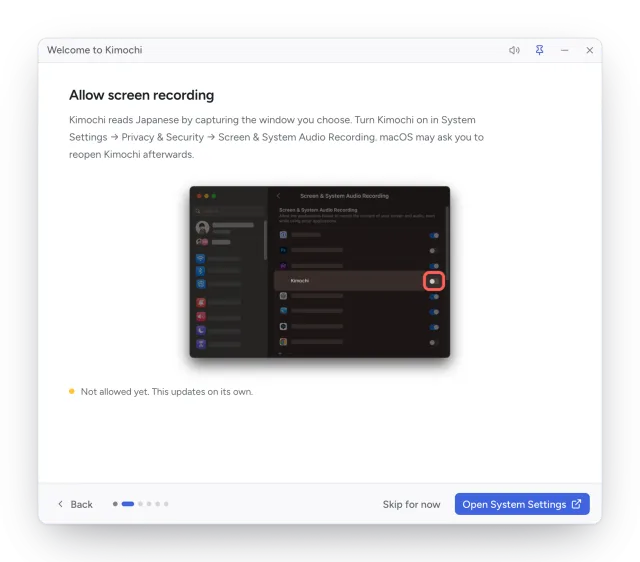
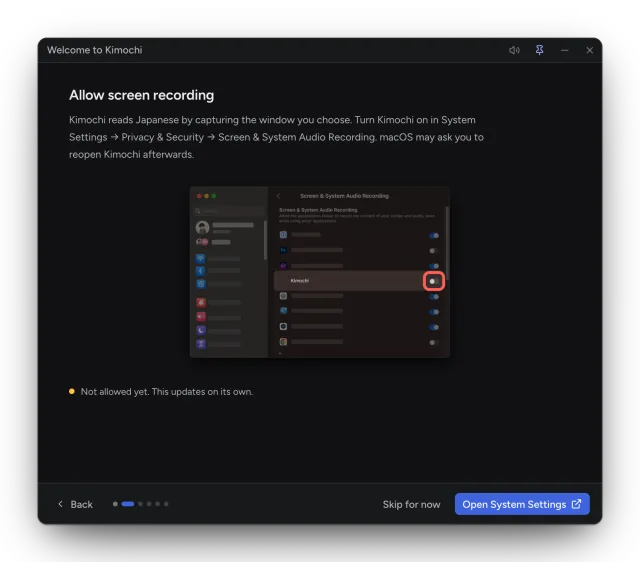
If you skip it, the source menu shows Allow Screen Recording… in place of your windows until it is allowed.
Accessibility (optional)
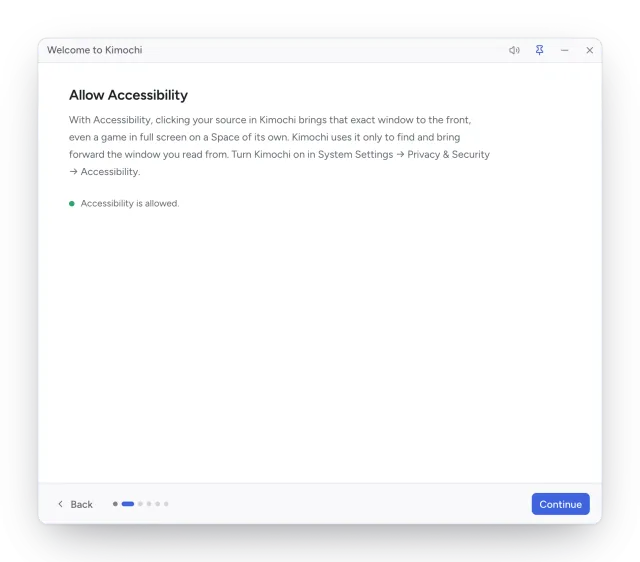
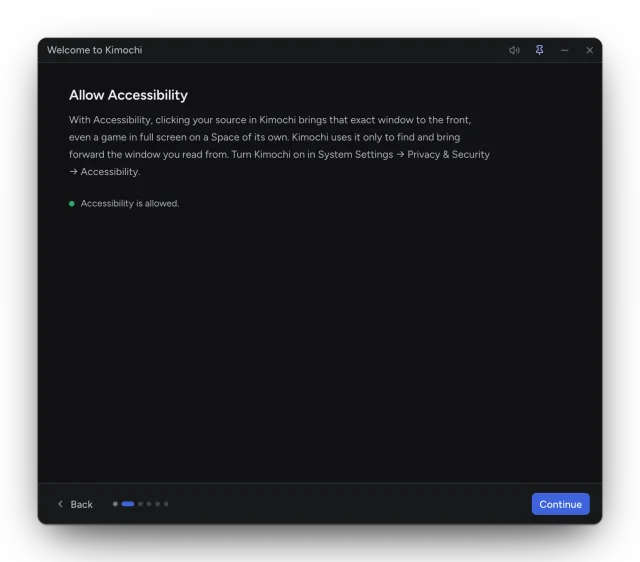
Section titled “Accessibility (optional)”With Accessibility, clicking your source in Kimochi brings that exact window to the front, even a game in full screen on a Space of its own. Kimochi uses it only to find and bring forward the window you read from. Without it, Kimochi brings the application forward instead.
Turn it on in System Settings → Privacy & Security → Accessibility, from the welcome guide’s Allow Accessibility step or from Settings → Sources → Windows.
Game Mode
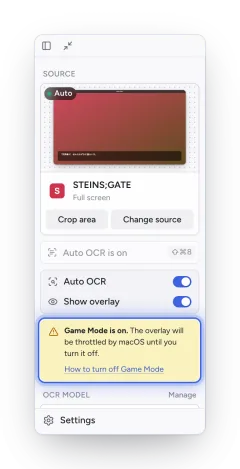
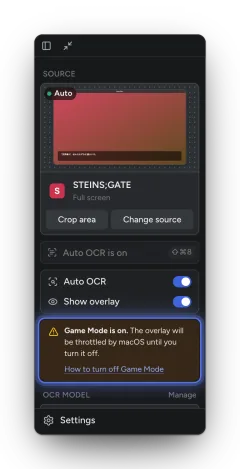
Section titled “Game Mode”When a full-screen game is in front, macOS Game Mode slows down every other app’s drawing, which throttles Kimochi’s overlay. Kimochi notices this and shows Game Mode is on under the overlay switch, with a link to Apple’s guide to turning it off.
Uninstalling
Section titled “Uninstalling”Quit Kimochi and move it from Applications to the Bin. Your settings, Log and downloaded engines are
in ~/Library/Application Support/dev.kimochi.app/; delete that folder too to remove them.