
Auto OCR
With Auto OCR on, Kimochi watches the source and scans it each time the text on screen changes and then settles, so new dialogue lands in the Log without pressing anything. Turn it on with the Auto OCR switch in the sidebar or from the controller menu.
While it is on, the preview shows an Auto badge with a green dot and the Scan button reads Auto OCR is on. Auto OCR works with a window or screen source; Quick Shot has no Auto OCR.
How it decides when to scan
Section titled “How it decides when to scan”Auto OCR reads the screen locally several times a second (nothing is sent anywhere for this) and only sends a capture to the OCR engine once the text stops changing: by default, two identical readings in a row. Text that never stops animating is read anyway after a while, and requests are spaced out so a fast-moving scene doesn’t flood the engine; only the newest frame is kept.
The Log’s activity ticker (bottom of the Log) says what happened: Screen settled, scanning…, Added 1 line, Same text as before, not added, No new text. Click it for the recent history.
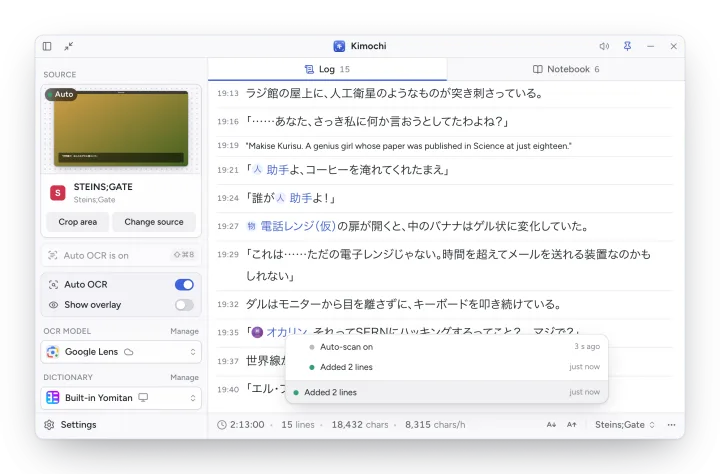
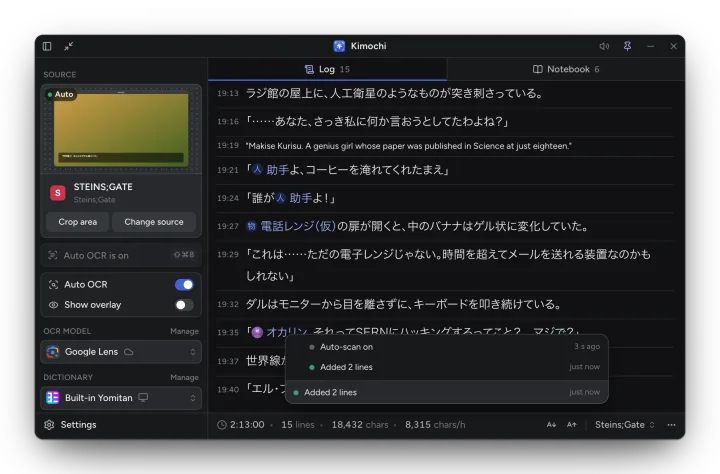
If scans fail several times in a row, Auto OCR pauses (Auto-scan paused: it failed several times in a row); manual scans still work.
Settings
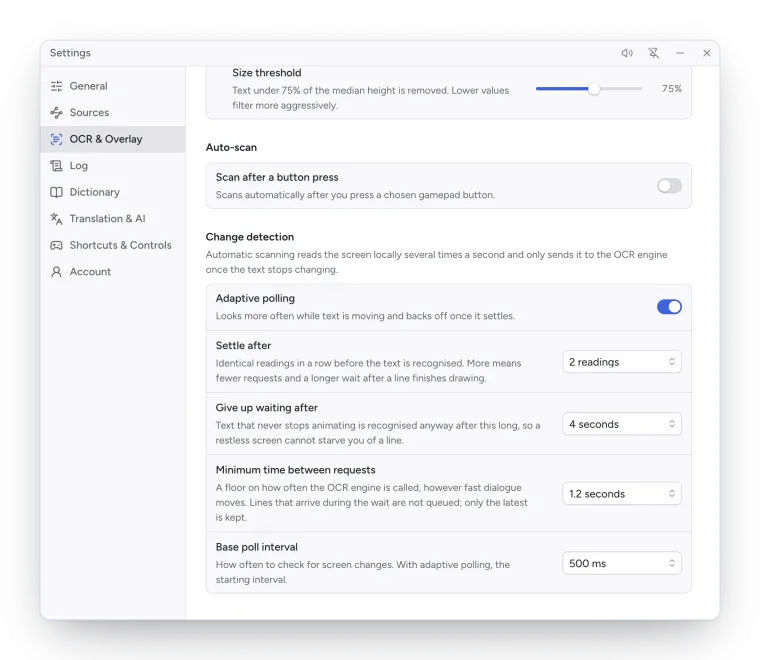
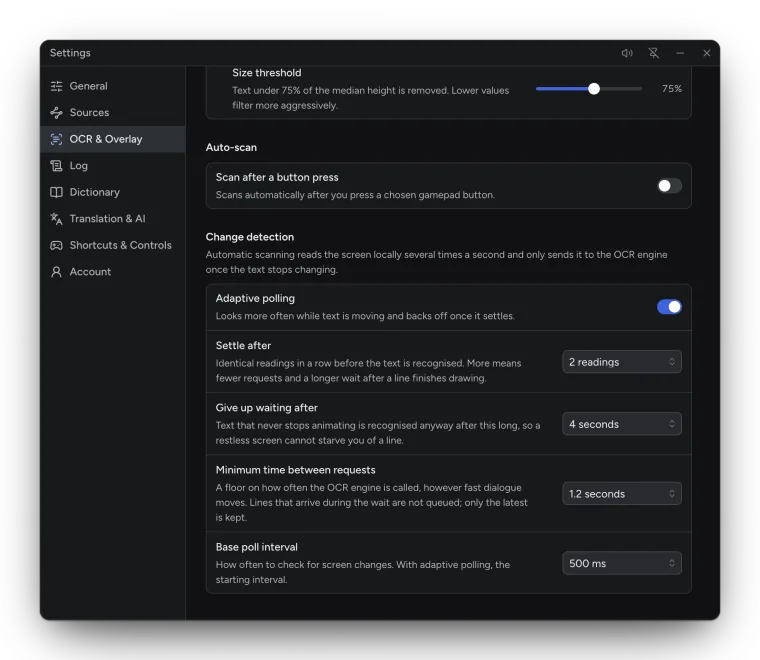
Section titled “Settings”Settings → OCR & Overlay → Change detection:
| Setting | Options | Default | What it does |
|---|---|---|---|
| Adaptive polling | On / off | On | Looks more often while text is moving, and backs off once it settles. |
| Settle after | 2, 3 or 4 readings | 2 readings | Identical readings in a row before the text counts as settled. More means fewer requests and a longer wait after a line finishes drawing. |
| Give up waiting after | 2, 4 or 8 seconds | 4 seconds | Text that never stops animating is recognised anyway after this long. |
| Minimum time between requests | No limit, 0.8, 1.2 or 3 seconds | 1.2 seconds | A floor on how often the OCR engine is called. Lines that arrive during the wait are not queued; only the latest is kept. |
| Base poll interval | 250 ms – 5 s | 500 ms | How often to check for screen changes (the starting interval with adaptive polling). |
Scan after a button press
Section titled “Scan after a button press”Settings → OCR & Overlay → Auto-scan → Scan after a button press scans automatically a moment after you press a chosen gamepad button, for games where you advance the text with a button. Set the Gamepad trigger and the Scan delay (100 ms to 3 s, default 500 ms).