
Translation and AI
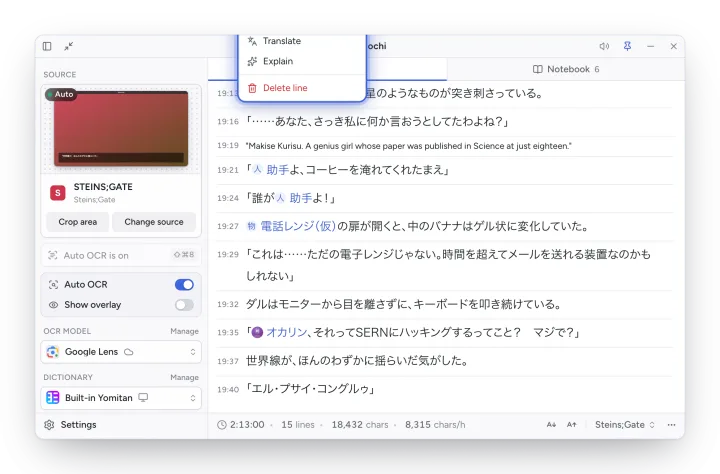
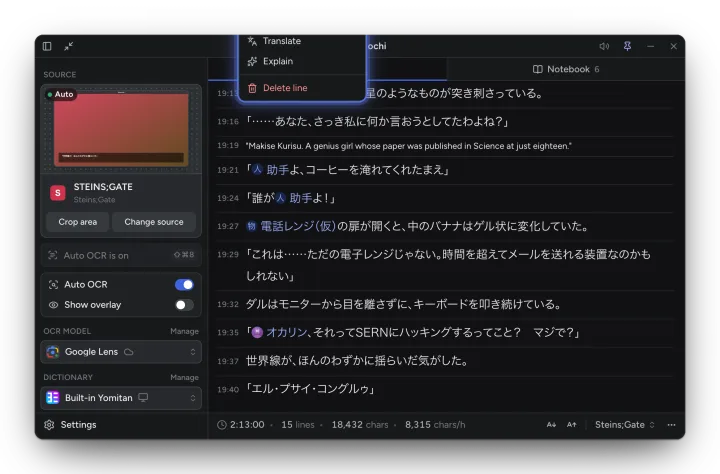
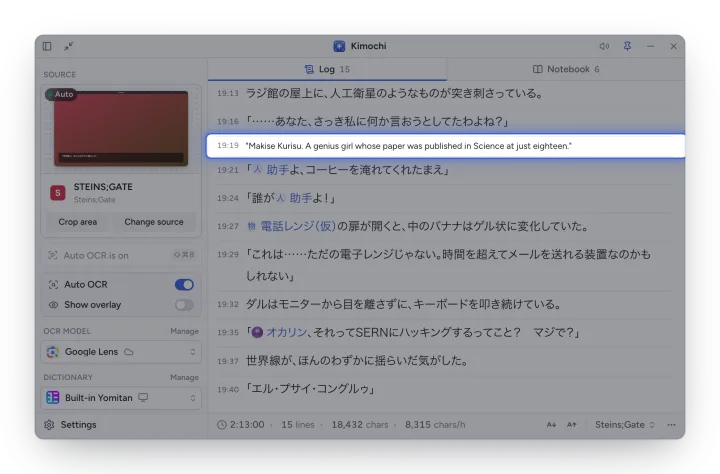
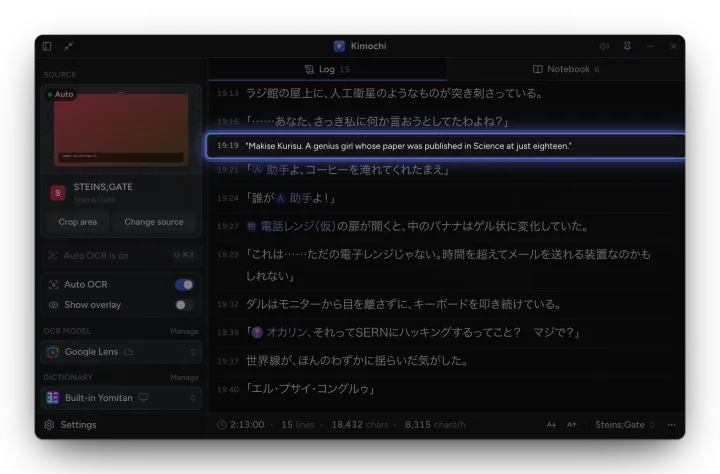
For a line you can’t read yet, the Log can translate it, explain it, or read it aloud. All three are in each line’s menu (hover a line and press ⋯, or right-click it).
Translate
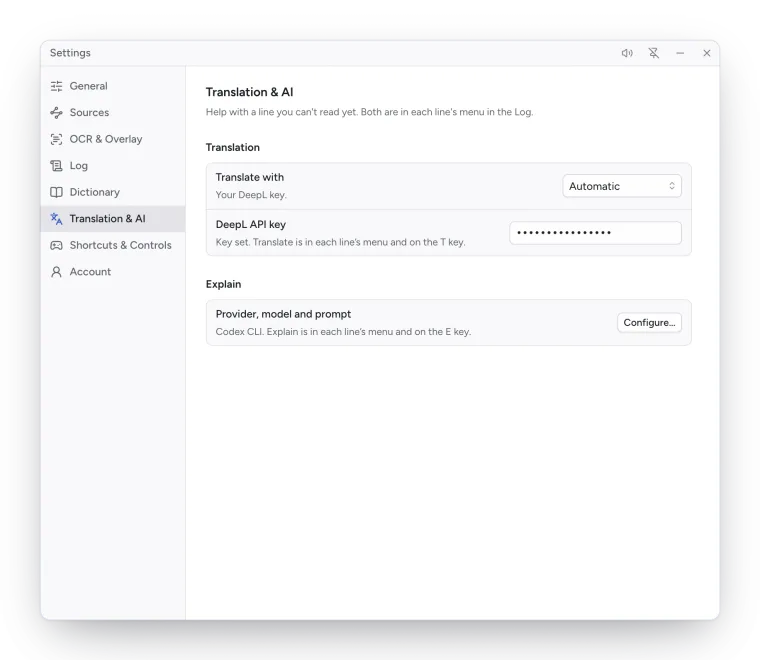
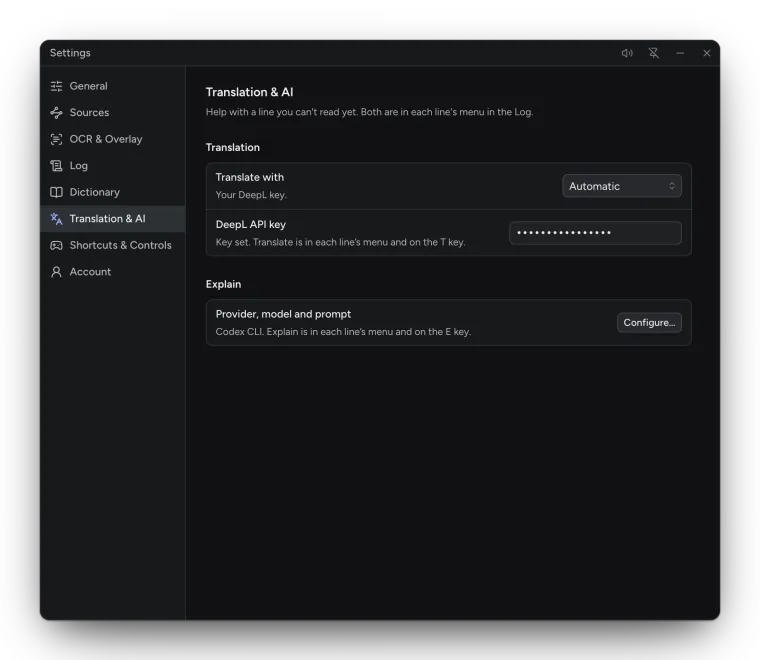
Section titled “Translate”Translate shows the line in English in place (Show original switches back); press T while hovering a line to toggle it. Choose where translations come from in Settings → Translation & AI → Translate with:
| Option | What it uses |
|---|---|
| Automatic (default) | Kimochi Cloud if your account has it, otherwise your DeepL key. |
| Kimochi cloud | Kimochi’s server (DeepL behind it). Needs Kimochi Cloud. |
| Your DeepL key | Your own DeepL API key, entered below it. |
Your DeepL key is stored locally in settings.json and is never synced or backed up.
Explain
Section titled “Explain”Explain (or E on a hovered line) opens a grammar-focused explanation of the line, starting with a one-line translation, using the lines before it as context. Answers are cached (Cached); Regenerate runs it again with the current settings. You can Shift-hover words inside the explanation too.
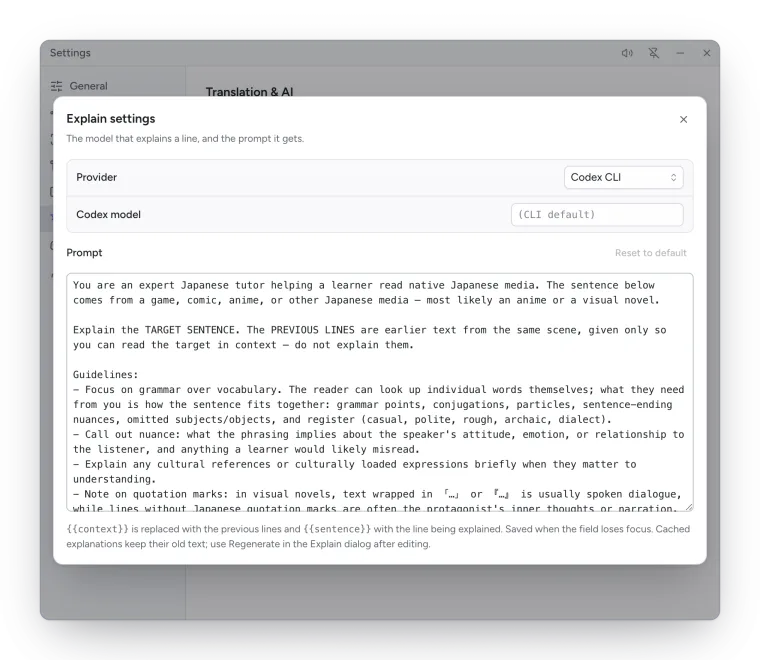
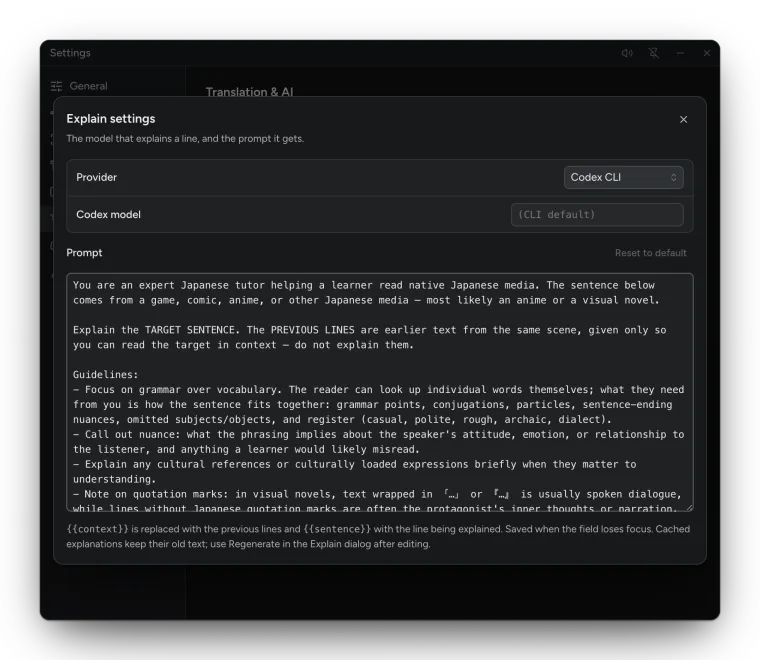
Settings → Translation & AI → Explain → Configure… chooses who answers:
| Provider | Notes |
|---|---|
| Codex CLI (default) | Runs the codex command-line tool on this computer. Model: the CLI’s default, or one you name. |
| Claude CLI | Runs the claude command-line tool on this computer. Model: Opus (default), Sonnet, Haiku or Fable. |
| Kimochi cloud | Kimochi’s server, with Kimochi Cloud. |
The Prompt is yours to edit, with {{context}} (the previous lines) and {{sentence}}
placeholders; Reset to default restores it.
Read aloud
Section titled “Read aloud”With Kimochi Cloud, each line’s menu has Read aloud, which plays the line in an ElevenLabs voice. Choose the Read-aloud voice and Voice model (Eleven v3, v4 or v4 Turbo) in Settings → Log → Reading. Without Kimochi Cloud the item isn’t shown.