
Gaming Mode
On a Steam Deck, Kimochi can run in Gaming Mode next to your game. Gaming Mode support is early and experimental. First install Kimochi and add it to Steam.
Starting
Section titled “Starting”- In Gaming Mode, start Kimochi from your library.
- Start your game.
- In Kimochi, Change source lists your running games by name, with their Steam icons and live previews. Choose the game. Kimochi reads it even while Kimochi itself is in front.
- Set a crop around the dialogue to skip menus and other text.
Gaming Mode shares the game screen on its own, so there is no capture permission or system picker.
Reading
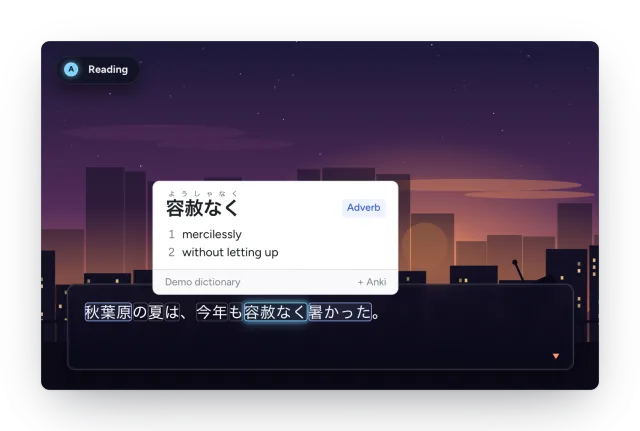
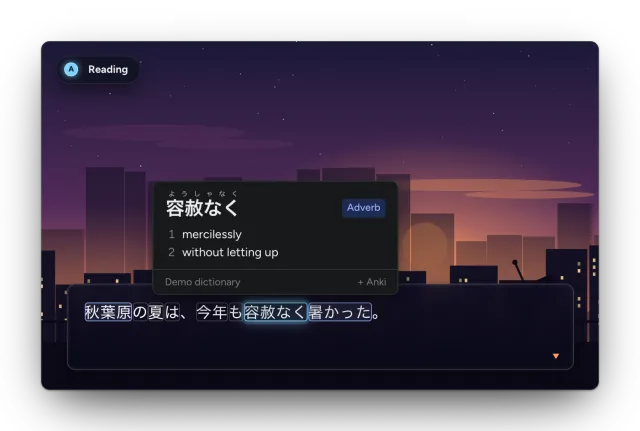
Section titled “Reading”Back in the game, click both sticks (L3 + R3) to open Kimochi’s controller menu and choose Scan. Pick a word with the D-pad, press A for the reading, and press B to go back to the game. See Controller.
While Kimochi is in front, a Gaming Mode notice says which buttons bring up the game menu, with a Return to game button.