
Looking up words
Wherever Japanese appears, Kimochi’s dictionary pop-up is a hover away. The pop-up is the dictionary engine you chose, so its look, audio and Anki button are that engine’s.
In the Log
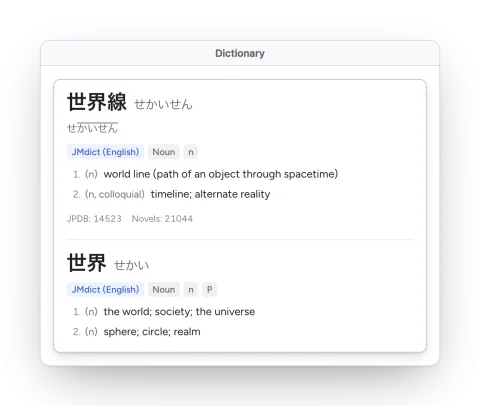
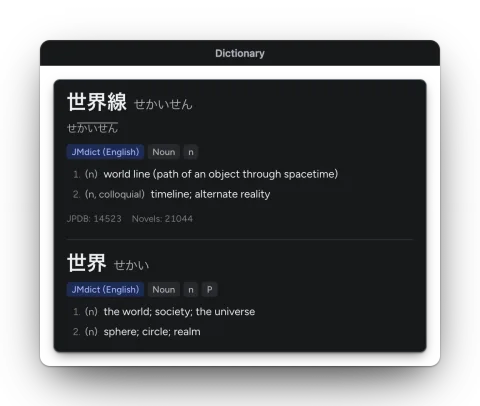
Section titled “In the Log”Hold Shift and hover a word in any line. The pop-up shows the entry for the longest word that starts there, with its reading, definitions and (for most engines) audio and an Anki button.
Over the game
Section titled “Over the game”With the overlay on, hover a word right where it is on screen, with the same key held. The word you’re on is highlighted and the pop-up opens beside it.
With a controller
Section titled “With a controller”Open the controller menu (click both sticks, or ⇧⌘Space / Ctrl+Shift+Space) and choose Scan (scan, then start at the first word) or Read along (step through the last scan):
| Control | Action |
|---|---|
| D-pad or left stick ◀ ▶ | Previous / next word |
| D-pad or left stick ▲ ▼ | Previous / next line (column, for vertical text) |
| A | Look the word up again |
| LB / RB | Previous / next definition in the pop-up |
| Right stick | Scroll the pop-up |
| B | Back to the game |
Words are split the way the dictionary sees them: with Built-in Yomitan, the longest dictionary match with deinflection, so 食べられなかった is one stop, not seven. The Yomitan API uses its own tokenizer, and Hachidori and 10ten a general word splitter. On the keyboard, the arrows, Return and Esc do the same while the menu is open.
Recent text in the controller menu lists your recent scans; pick one to read its words again.
Notebook names
Section titled “Notebook names”Names you keep in the Notebook are recognised in the Log and shown as chips. Click one to see its card: what it is, its nicknames and notes, and Open in Notebook.