
The overlay
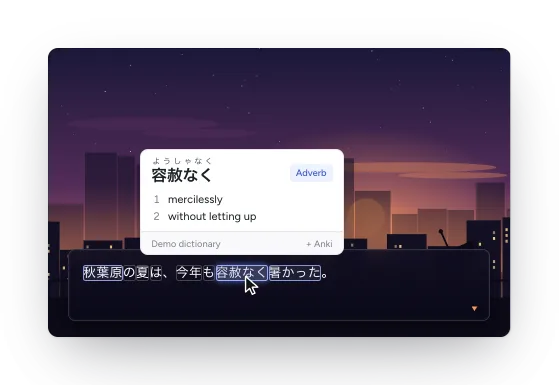
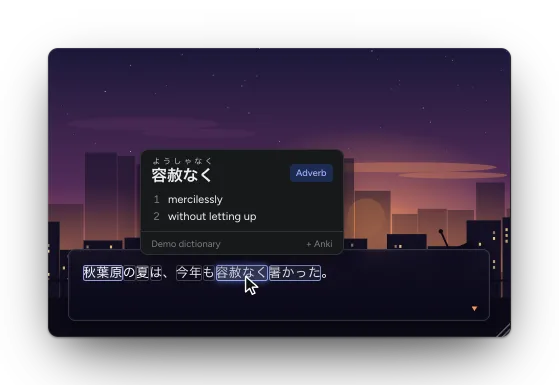
The overlay draws each scan’s text back over the game, so you can hover a word where it appears on screen instead of in the Log. Look for the faint blue underlines on scanned text.
Turning it on
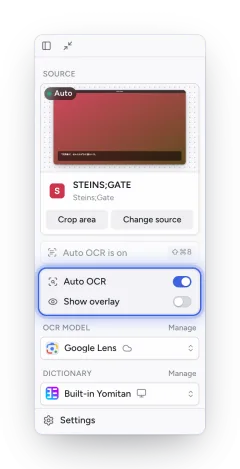
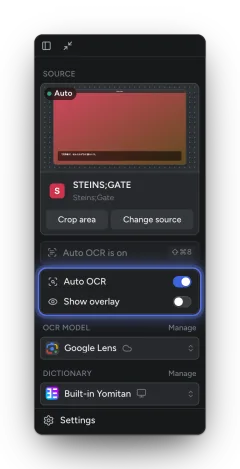
Section titled “Turning it on”Turn on Show overlay in the sidebar (under Auto OCR). The overlay follows the window you read and stays click-through everywhere except over the words themselves, so the game keeps working underneath.
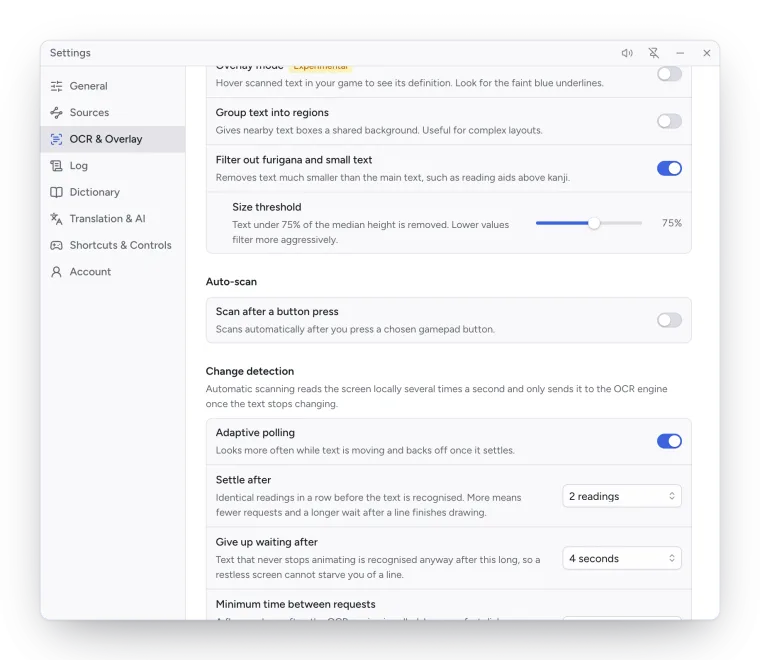
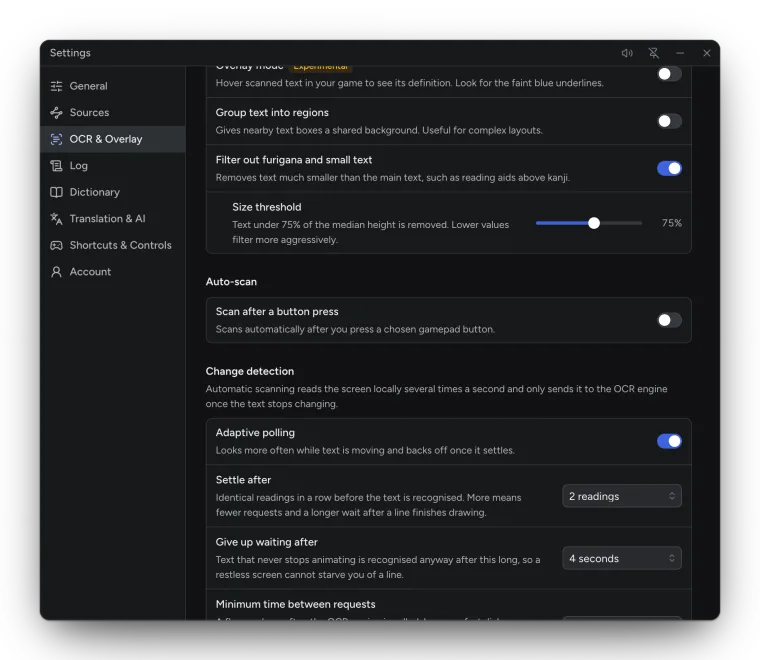
The overlay is marked Experimental (Settings → OCR & Overlay → Overlay mode).
Looking up words
Section titled “Looking up words”Hover a word with the dictionary’s scan key held (Shift for Yomitan by default) to open its pop-up. With a controller, open the controller menu and choose Scan or Read along to step through the words with the D-pad. See Looking up words.
Options
Section titled “Options”| Setting | Default | What it does |
|---|---|---|
| Group text into regions | Off | Gives nearby text boxes a shared background. Useful for complex layouts. |
| Filter out furigana and small text | On | Leaves reading aids above kanji out of the overlay and the Log. |
Platform notes
Section titled “Platform notes”- macOS: Game Mode throttles the overlay while a full-screen game is in front; Kimochi tells you when it happens. See Install on macOS.
- Linux on Wayland: the overlay needs the desktop’s layer-shell support or, on GNOME 46, the GNOME overlay extension. Without them the switch reads Overlay unavailable. See Install on Linux.
- Debug overlay (Settings → General → Diagnostics) marks the scanned text boxes over the source and opens the Diagnostics window, to check what the OCR found.