
Quick start
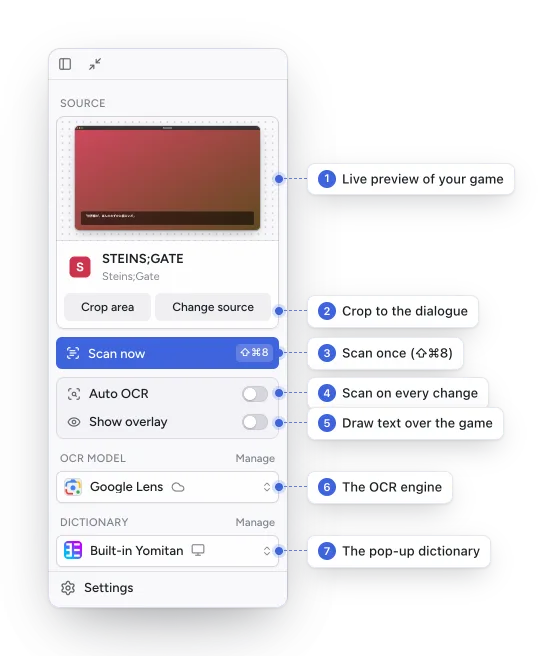
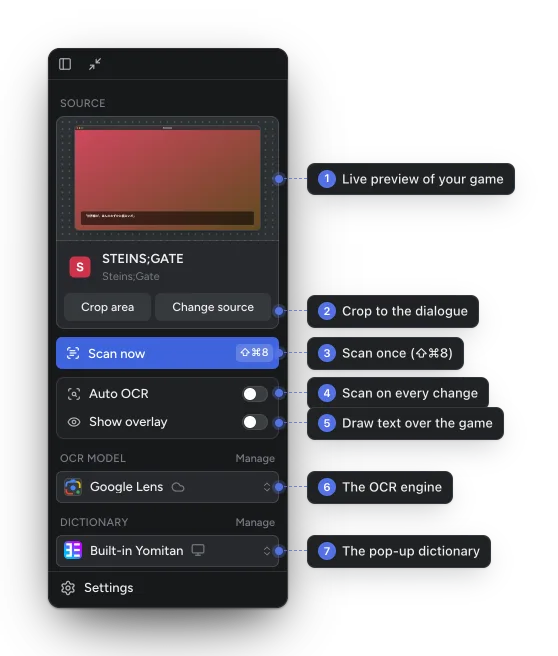
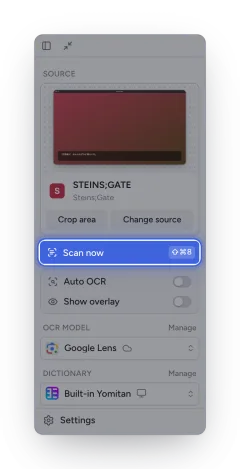
This assumes you have installed Kimochi and gone through the welcome guide. Everything you need is in the main window’s sidebar:
-
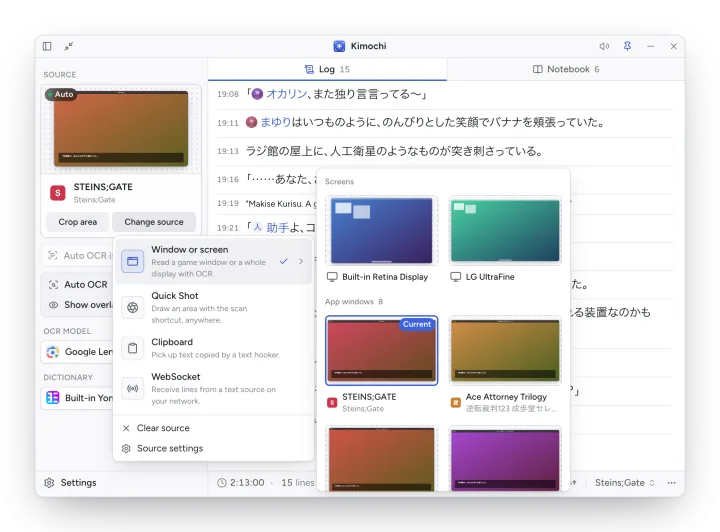
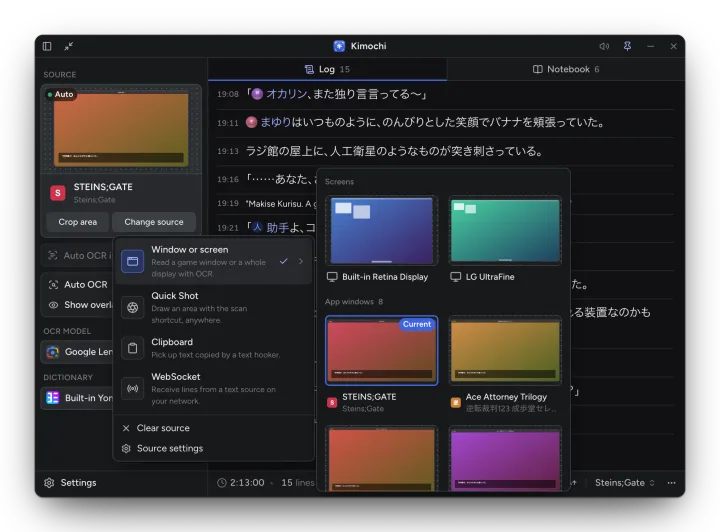
Choose a source. Start your game, then in Kimochi’s sidebar choose Choose a source (or Change source once one is set) → Window or screen, and pick the game’s window.
-
Crop to the dialogue (optional). Crop area → Set crop area… lets you draw a box around the text box, so menus and other text are left out. See Sources and crop.
-
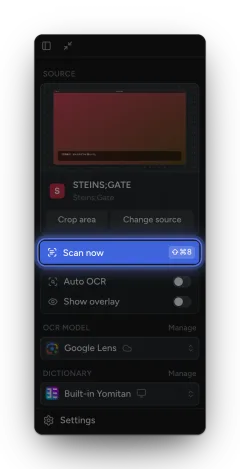
Scan. Press Scan now in the sidebar, or the Scan shortcut from anywhere: ⇧⌘8 on a Mac, Ctrl+Shift+8 on Windows and Linux. The text appears as a new line in the Log.
-
Or let it scan for you. Turn on Auto OCR: Kimochi watches the source and reads it each time the text changes and settles. See Auto OCR.
-
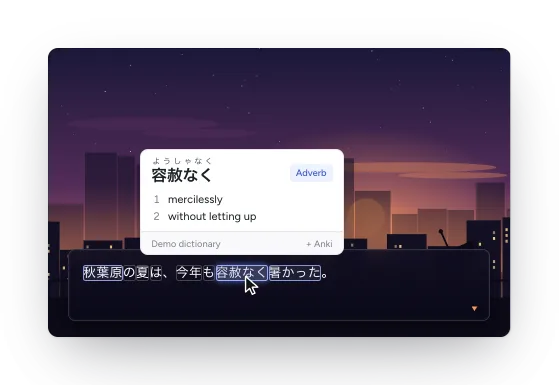
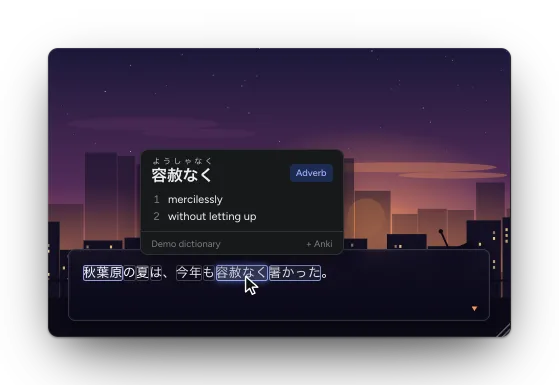
Look up a word. Hold Shift and hover a word in the Log to see its meaning. Turn on Show overlay to draw the text over the game and hover words right there.
-
Keep reading. Every line stays in the Log for this game’s session, with your reading time and speed in the footer.
- The overlay and Looking up words
- The Log and Notebook
- Controller if you read with a gamepad