
Texthookers and clipboard
If you already hook text out of a visual novel, Kimochi can take those lines instead of reading the screen. They land in the same Log, with the same lookups, Notebook and stats.
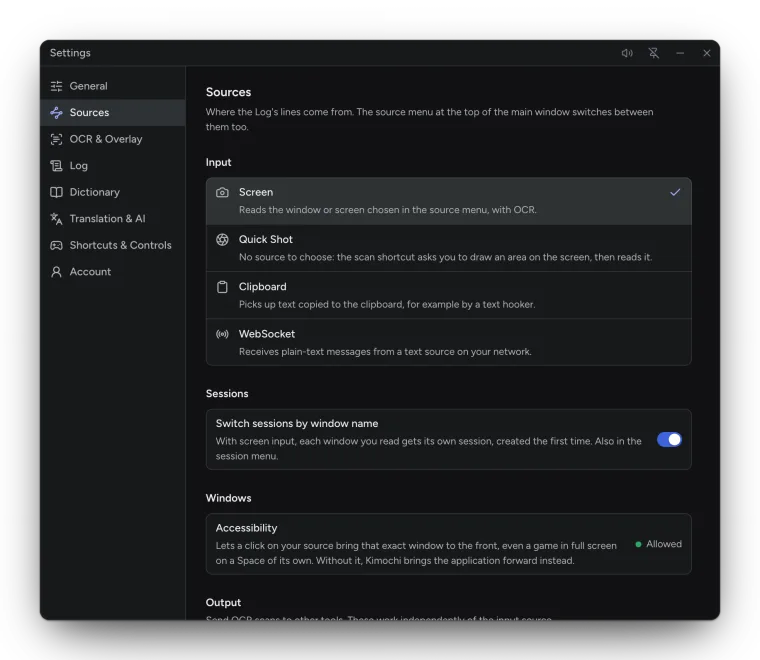
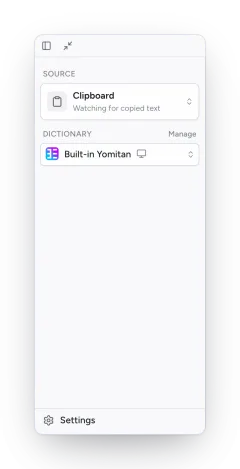
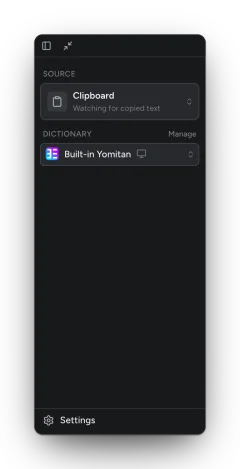
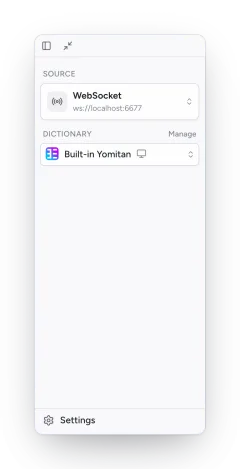
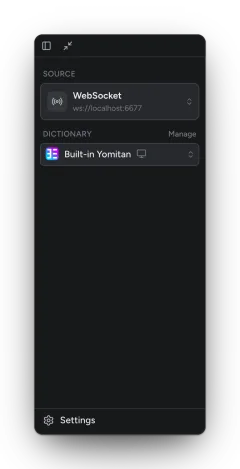
Choose the input in the sidebar’s Change source menu or in Settings → Sources → Input.
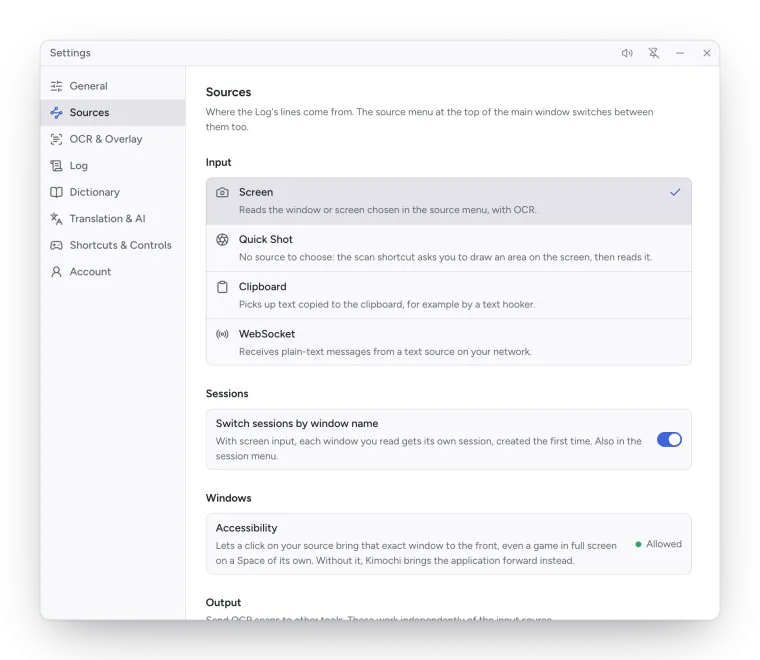
Clipboard
Section titled “Clipboard”Picks up text copied to the clipboard, for example by a text hooker that copies each line. Kimochi checks the clipboard every 200 ms by default (Poll interval: 100 ms, 200 ms, 500 ms or 1 s) and ignores its own copies.
WebSocket
Section titled “WebSocket”Receives plain-text messages from a text source on your network. Kimochi connects to the
WebSocket URL you set (default ws://localhost:6677) and reconnects on its own if the
connection drops. A status line at the top of the Log shows whether it is connecting, connected or
retrying.
Each message can be plain text, a JSON string, or a JSON object with a text or sentence field.
Use a ws:// or wss:// address without credentials.
Sending scans to other tools
Section titled “Sending scans to other tools”Settings → Sources → Output sends every OCR scan onwards, whatever the input is:
| Setting | Default | What it does |
|---|---|---|
| Copy scans to clipboard | Off | Copies each scan’s text, for tools that watch the clipboard. |
| Send scans over WebSocket | Off | Kimochi hosts a WebSocket server at the WebSocket URL (default ws://localhost:6677) that texthooker pages can connect to. |